
Fix IMPORTRANGE #REF! in Google Sheets (You need to connect these sheets)
IMPORTRANGE often lands as #REF! the first time you pull from a new spreadsheet. The formula is not broken. Sheets is waiting for you to connect the two files.
Recreate it on a blank sheet
Section titled “Recreate it on a blank sheet”- Open a new spreadsheet. This is the source. In A1 type
sku, B1name. In A2 type101. B2Widget. Leave the bottom tab namedSheet1. Copy the spreadsheet id from the URL: it is the long string between/d/and/editindocs.google.com/spreadsheets/d/<id>/edit. - Open a second blank spreadsheet. This is the target. In A1 enter
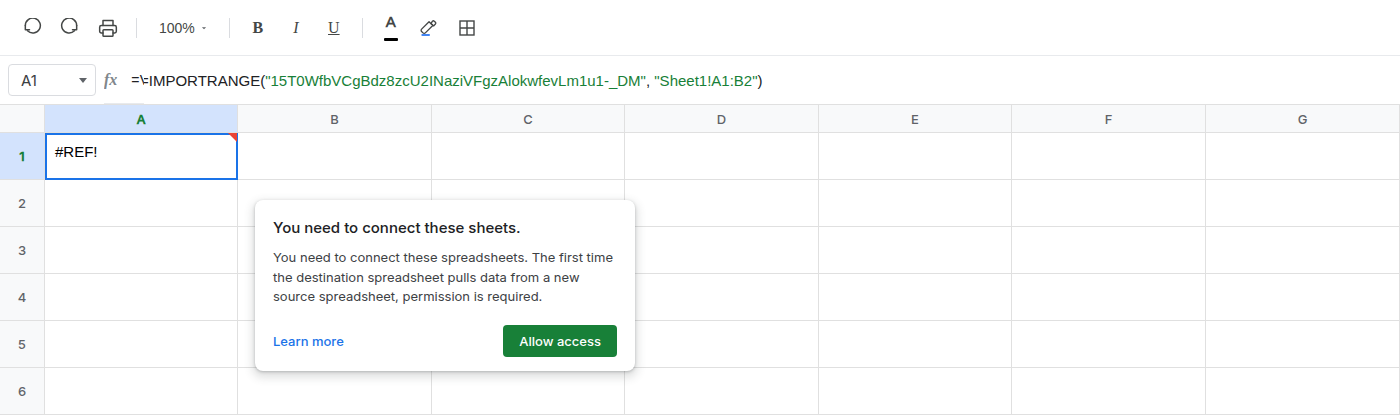
=IMPORTRANGE("SOURCE_ID","Sheet1!A1:B2"), pasting the id you copied. A1 shows#REF!and a prompt: You need to connect these sheets.
What is actually wrong
Section titled “What is actually wrong”- The destination spreadsheet has never pulled from this source. Sheets blocks the import until you grant access on that in-sheet prompt.
- The range string is valid.
Sheet1!A1:B2is on the source tab. This#REF!is not a missing range and not a deleted cell. - You click Allow access once for this pair of files. Later
IMPORTRANGEformulas in the same destination against the same source do not ask again.
Click Allow access on the in-sheet prompt. Leave the formula as it is.
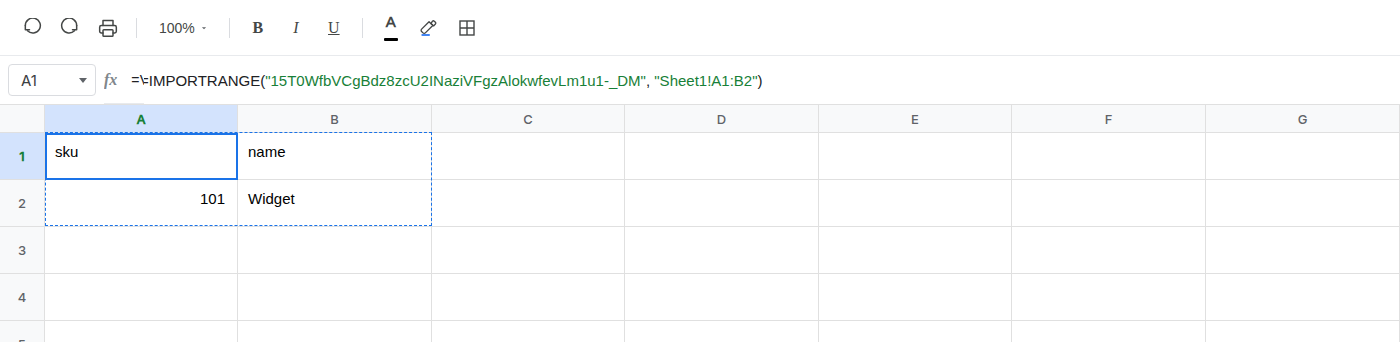
After the click, the same formula spills four cells: A1 sku, B1 name, A2 101, B2 Widget.
If #REF! is still there, check that you pasted the source id and that the tab name in the range string matches the source tab exactly.